Sign in to your account
Use an email verification code to access your account securely.
By continuing, you agree to our Terms of Service and Privacy Policy.
Image description, without prompt syntax
Upload a photo, screenshot, or illustration and get a plain-English description of its subject, setting, colors, lighting, and visible details.
Description ready
Prompt ready - take it straight into the image generator.
What you are looking at
An image describer turns the visible content of a picture into words. It looks at the main subject, the setting, the colors, the light, and the way the scene is arranged, then writes a description you can read and reuse.
This tool is made for ordinary English descriptions, not prompt-engineering shorthand. You get a paragraph that explains what is in the image, rather than a line of model commands. That makes it easier to check the result, share it with someone else, or rewrite it in your own voice.
It is useful when you need a first draft of alt text, a caption, a visual summary, or a written reference for a design or writing project. The result describes what appears to be visible; it does not identify people, confirm facts, or understand the meaning of an image in the same way a person would.
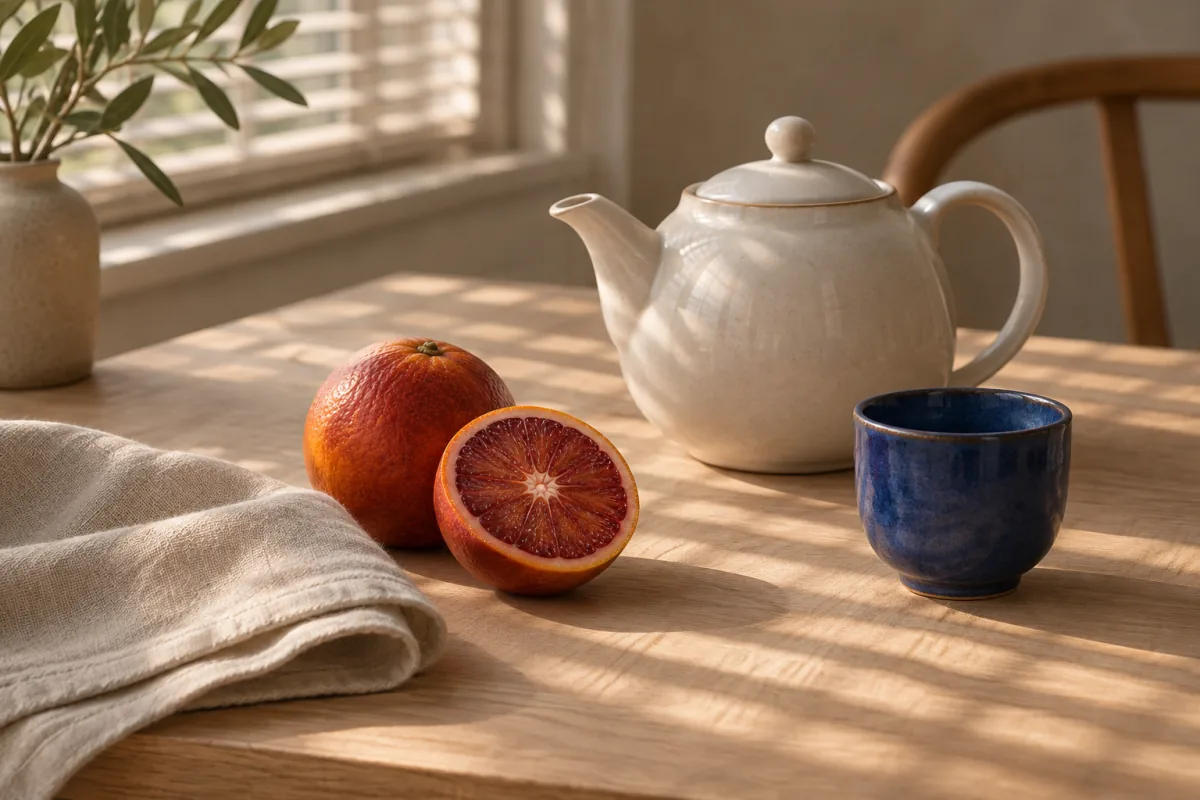
Example description
A white ceramic teapot, two blood oranges, a folded oatmeal linen napkin, and a small cobalt-blue cup sit on a pale oak table beside a window. Soft morning light casts blind shadows across the wood; the palette is warm and muted, with the blue cup providing the strongest color accent.
The wording is a starting point. Add the purpose of the image, remove details that do not matter, and check anything the model could have misread.
A useful description is more than a list of objects. The tool organizes the visible evidence into a readable account of the whole image.
What draws the eye first, what it appears to be doing, and how it relates to the other visible elements in the frame.
Colors, materials, background elements, and legible text when they are clear enough to describe with confidence.
Composition, lighting, depth, camera angle, and visible style cues that change how the scene reads.
Choose one image, set the level of detail, and turn the result into a description that fits your context.
Upload a JPG, PNG, or WEBP file, or paste a direct image link into the workbench.
Pick a short, detailed, or professional description. Tick the areas you want the tool to emphasize.
Read the output, correct anything that looks wrong, then copy the text into your caption, document, or design brief.
Use it when you need to explain a picture clearly, not when you need to recreate the picture with an image model.
Start with the visible details, then shorten the result and connect it to the purpose of the image on the page. A good alt text explains the image’s role; a long inventory of every object usually does not.
Turn a reference image into a sentence you can edit for a moodboard, content calendar, product note, or client message.
Describe an illustration, screenshot, or photo when a folder name is not enough and you need searchable text that explains what the file contains.
Both tools start with an image, but they answer different questions. Pick the output that matches your next step.
| Question | Image describer | Image to prompt |
|---|---|---|
| Main goal | Explain what is visible in plain language. | Create text that can guide an image model. |
| Best for | Alt text drafts, captions, notes, and searchable descriptions. | Recreating a look, style, or composition with an AI image tool. |
| Output style | A readable description with less technical language. | A prompt shaped for a chosen model and level of control. |
| Where to start | Stay on this page and describe the image. | Open the Image to Prompt Generator. |
Need prompt text, a photo-specific workflow, or a video idea? Choose the next tool based on the result you need.
What the tool does, what it can miss, and how to get a more useful description.
Upload a picture, read what the tool sees, and leave with a description you can correct and reuse.
Describe an image