Photo in, editable prompt out

Photo to Prompt

Made for photographsEditable textModel presets

Turn a photograph into an editable prompt based on its subject, setting, composition, lighting, colors, and visible style.

Drop a photo here or click to uploadJPG, PNG, or WEBP · Up to 8 MB

Drag a picture or a link from any page, or paste a direct image URL.

Detail level
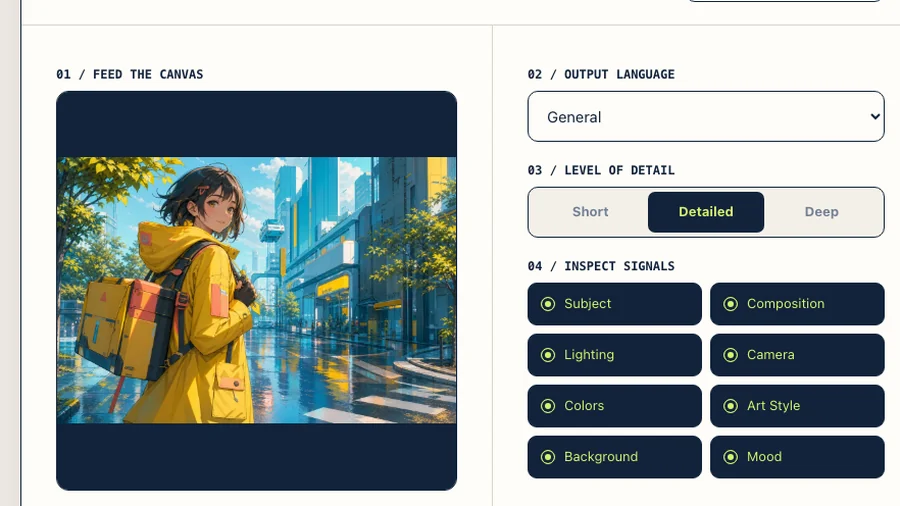
What the prompt should capture
Prompt output
Fidelity
  • Built around a photographThe wording starts with the scene in front of you, not a generic prompt template.
  • Useful visual detailSubject, setting, framing, light, palette, materials, and style can all be carried into the prompt.
  • Editable outputChange names, remove unwanted details, and adapt the result for your own image workflow.
A page built around examples

Photo to Prompt: what this page is for

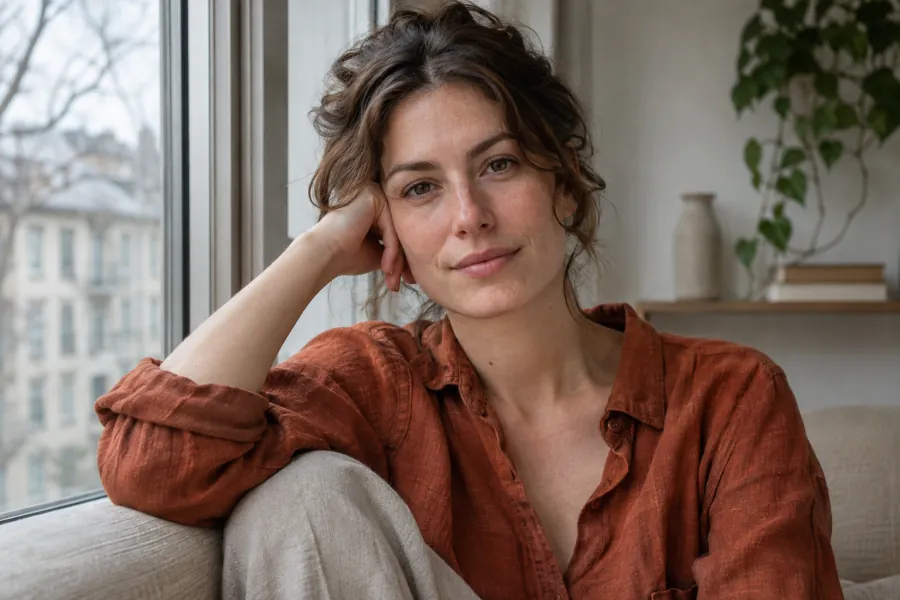
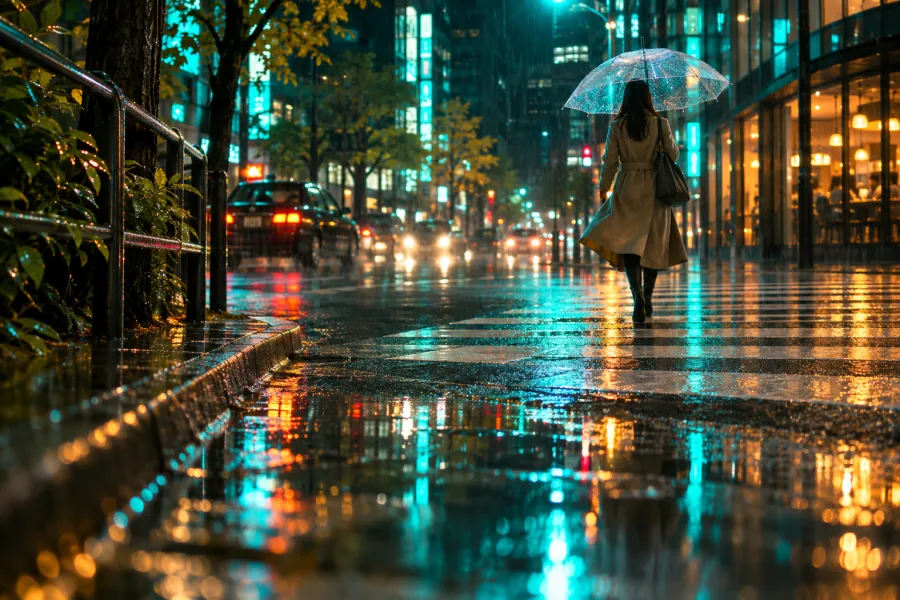
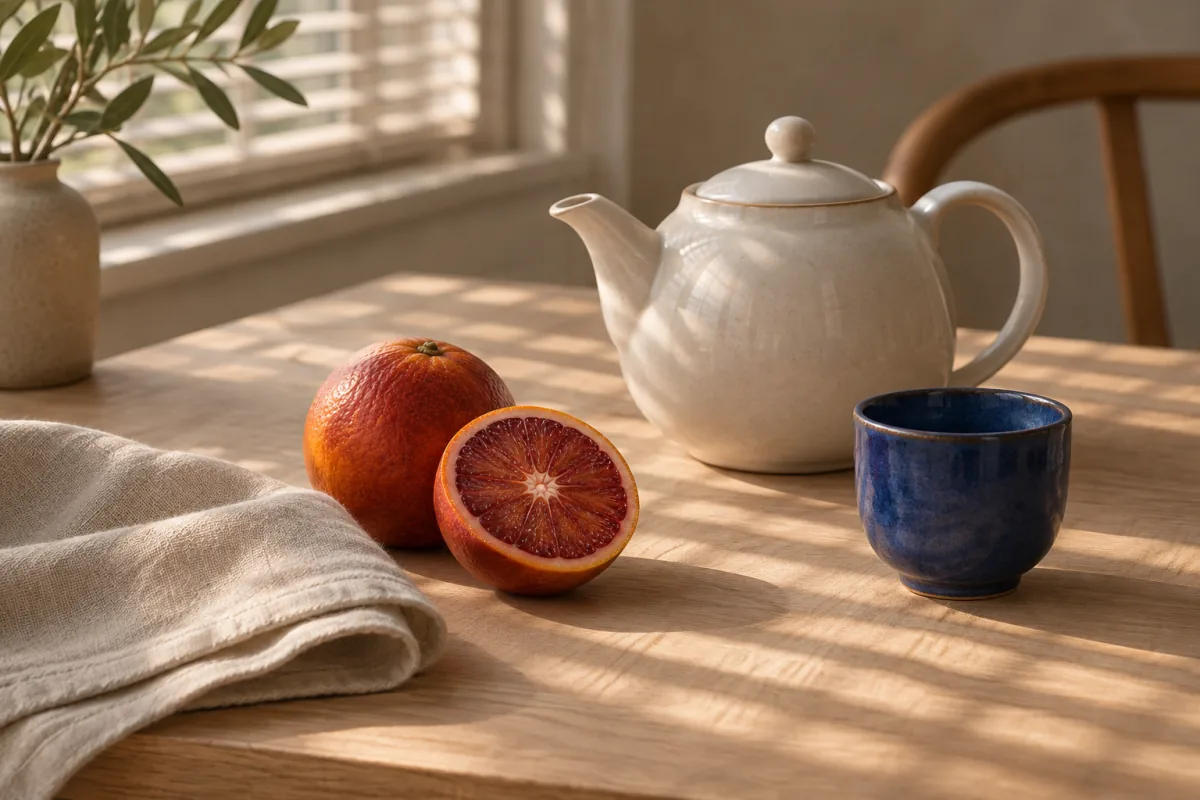
This page is for photographs with real light, material, and camera behavior. Instead of repeating a generic “what is” essay, it shows the kind of prompt each photograph can produce.

Use the examples below as starting points: replace the subject, keep the lighting or framing you need, and remove details that do not belong to your next image. The tool can read a portrait, product, landscape, interior, or street scene, but the useful part is the visual evidence it preserves.

Every prompt is editable text, not a final creative brief. The photograph supplies the scene; your edit supplies the campaign idea, location, or direction that is not visible in the frame.

Five photo prompts to start from

Photo prompt examples, not one more explainer

Five different photographs, five different prompt structures. Copy the one closest to the image you have, then change the subject while keeping the light, framing, or palette.

What makes a photo prompt useful

Keep the evidence, edit the intent

A good photo prompt is specific without becoming a catalogue. Use these five checks before you paste the result into an image tool.

  • Names the main subject and what it is doing
  • States the direction and quality of the light
  • Keeps the camera angle, framing, and depth of field
  • Uses a small, coherent color and material palette
  • Adds only the intent the photograph cannot show
Before you generate

What a photo prompt can and cannot know

Usually useful

  • The main subject, visible setting, light direction, and overall color palette.
  • Framing, camera angle, depth of field, and obvious material or texture cues.
  • A visual style that is actually visible, such as documentary, editorial, or studio photography.

Check before using

  • Exact object counts, small text, brand names, and details hidden by blur or shadow.
  • The real location, people’s identities, or facts about what happened outside the frame.
  • Creative intent that is not visible in the photo. Add that yourself after the prompt is generated.
Questions

Photo to Prompt FAQ

How the tool reads a photo, what it can miss, and how to get a more useful prompt.

What is Photo to Prompt?

Photo to Prompt turns a photograph into editable text that describes the visible subject, setting, composition, lighting, colors, and style. You can use that text as a starting point for an image-generation prompt.

How do I turn a photo into a prompt?

Upload a JPG, PNG, or WEBP photo, choose a target model and detail level, then press Create Photo Prompt. Review the result and edit it before copying.

What kinds of photos work best?

Clear photographs with a recognizable subject, visible light, and enough context in the frame usually produce more useful prompts. A heavily blurred, very dark, or cluttered photo can produce a vaguer result.

Can I use portraits, products, and landscapes?

Yes. The tool can describe many kinds of photographs. For people, it describes visible appearance and pose; it does not identify who the person is.

Does it read text inside a photo?

It may pick up clear, large text, but it is not an OCR tool. Check signs, labels, product names, and small print yourself before relying on them.

Which file formats are supported?

The upload area accepts JPG, PNG, and WEBP files within the size limit shown on the page. You can also paste a direct image link.

Can I edit the generated prompt?

Yes. The result is plain editable text. Remove details you do not want, add the intent the photo cannot show, and adapt it for your chosen image tool.

Are uploaded photos stored or published?

The upload is used for the current request, and the temporary file is removed after processing. The AI provider may apply its own data policy; read the Privacy Policy for the full statement.

Is Photo to Prompt free?

The tool is free to use on this page. You do not need an account or payment details before generating a prompt.

When should I use Image to Prompt instead?

Use Image to Prompt for illustrations, graphics, and any visual reference. Use Photo to Prompt when the input is specifically a photograph and its camera, light, and material qualities matter.
Still have questions? Contact us at [email protected]

Turn one photo into a working prompt

Upload a photograph, review the visual details, and leave with editable text you can shape for your next image.

Upload a photo
Copied
Feedback email