Subject action
A person turns, a product rotates, fabric moves, steam rises, or an object is lifted. Name the start and end of the action.
Still frame in, moving scene out
Turn a still image into an editable text-to-video prompt with a clear subject, action, camera move, lighting, and ending state.
Video prompt ready
Prompt ready - take it straight into the image generator.
An image to video prompt turns a still photograph into directions for a moving shot. It keeps the visible scene, then describes what happens next.
A still image already answers several questions for a video model: who or what is in the frame, how the scene is arranged, where the light comes from, and what visual style the shot belongs to. The missing part is time. An image to video prompt adds a beginning, a change, a camera behavior, and an end state so the image does not remain a frozen picture.
This picture to video prompt generator reads the visible evidence in your upload, then writes a text prompt that can be used with a text-to-video or image-to-video workflow. It is especially useful when you have a strong reference frame from a Photo to Prompt result, a product photo, a location scouting image, or a style frame, but need a clear description of how the scene should move.
The output is a direction, not a promise that every video model will produce the same clip. Different models interpret motion, timing, and camera language differently. Keep the prompt specific, test a short version first, and edit the result after you see how your chosen tool responds.
The still frame is the reference, not a decoration. A useful video prompt keeps the visual facts that make the shot recognizable.
The main person, product, or object, its visible details, and the place around it stay anchored to the opening frame.
The direction of the light, warm or cool color balance, contrast, materials, and surface textures carry into the moving shot.
Framing, lens character, camera height, depth of field, and visible style cues guide the motion instead of being replaced by generic adjectives.
Start with one still, choose the motion you want to see, and turn the result into a shot you can test.
Use one image with an obvious subject and enough room around it for movement, rather than a busy collage with several competing focal points.
Describe what changes: the subject turns, the camera pushes in, an object enters, or the light shifts. One primary action is easier to direct than five.
Keep the camera and timing wording that fits your tool, remove a conflicting move, and save the final prompt with the source frame.
You do not need every option. Pick the one change that makes the still feel alive and supports the story of the shot.
A person turns, a product rotates, fabric moves, steam rises, or an object is lifted. Name the start and end of the action.
A slow push-in, lateral track, gentle orbit, or locked-off frame. Use one dominant move and keep it consistent.
A cloud passes, a window light grows warmer, or a neon reflection enters the frame. Use light change only when it helps the scene.
A four-second clip needs one beat; a longer shot can hold an approach, an action, and a settling frame. Match the action to the duration.
State what the opening frame shows and what the viewer should see at the end. This keeps the motion coherent.
Protect the subject count, product details, location, and palette. Unexpected replacements make the shot feel unrelated to the source image.
A video prompt is easier to test when the viewer can follow one visual idea from the first frame to the last.
Start with a stable subject. If the person, product, or object is already clear in the still, the prompt should keep that identity, scale, and place in the frame. A slow movement around a recognizable subject usually reads better than a fast montage that asks the model to invent several new objects and locations.
Then choose one change. A camera push-in, a turn of the head, a product rotating on a table, or a passing light can each carry a short shot. If you ask the camera to orbit, the subject to walk away, the room to change, and the light to switch at the same time, the model has too many competing instructions. Remove everything that does not support the main beat.
Finally, name the ending. The last frame gives the model a destination: the subject has turned toward the window, the camera has moved close to the product label, or the car has passed the brightest part of the street. A clear end state makes the clip easier to judge and easier to revise, because you can see whether the movement actually arrived where the prompt intended.
The same reference frame can produce a quiet drift, a tracking shot, or a short narrative beat. The prompt should make that choice explicit.
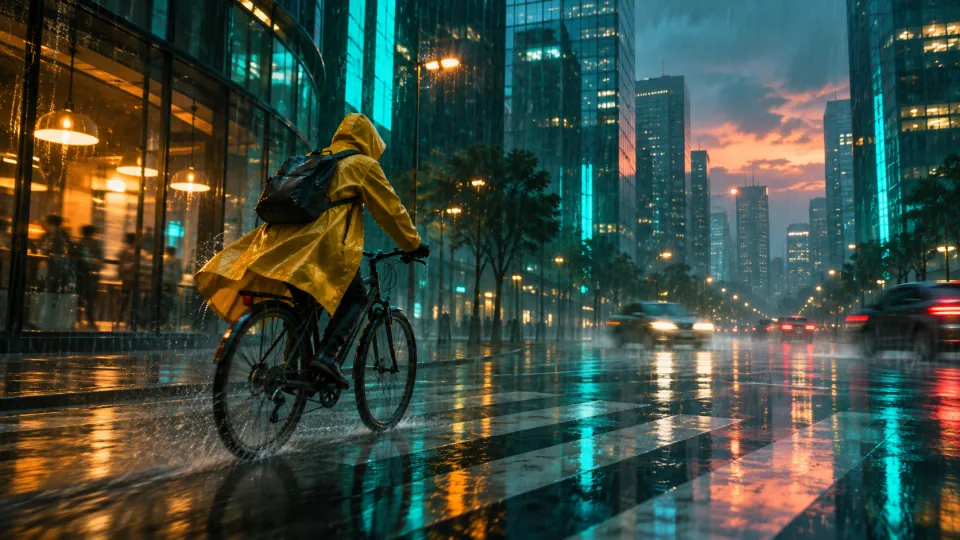
Example video prompt
A night city street seen through the side window of a car, wet asphalt reflecting warm streetlights and red tail lights. The camera holds a low side angle while the car moves forward at a steady pace; nearby buildings slide past with soft motion blur, rain streaks cross the glass, and distant traffic lights bloom in the background. The opening frame centers a stretch of wet road and a cluster of amber lights; by the end, the car has moved past the lights and the street recedes into cool blue shadow. Cinematic realism, shallow depth of field, 16:9, 5 seconds.
Change one variable at a time: keep the street and palette, swap the side window for a rearview mirror, or replace the forward drift with a slow orbit around a parked car.
Both end with a video prompt. One begins with a picture; the other begins with an idea written in words.
Use this page when the composition, light, and subject of the opening frame already exist. It preserves the visual evidence in the source image.
Use the Video Prompt Generator when you have a written scene, a video type, a platform, and a duration but no reference frame.
Use Image to Prompt when the desired output is a still-image prompt rather than a moving shot.
What the tool reads, what it adds, and how to make the motion easier to direct.
Upload the image, add the motion you want to test, and leave with an editable video prompt.
Create a video prompt